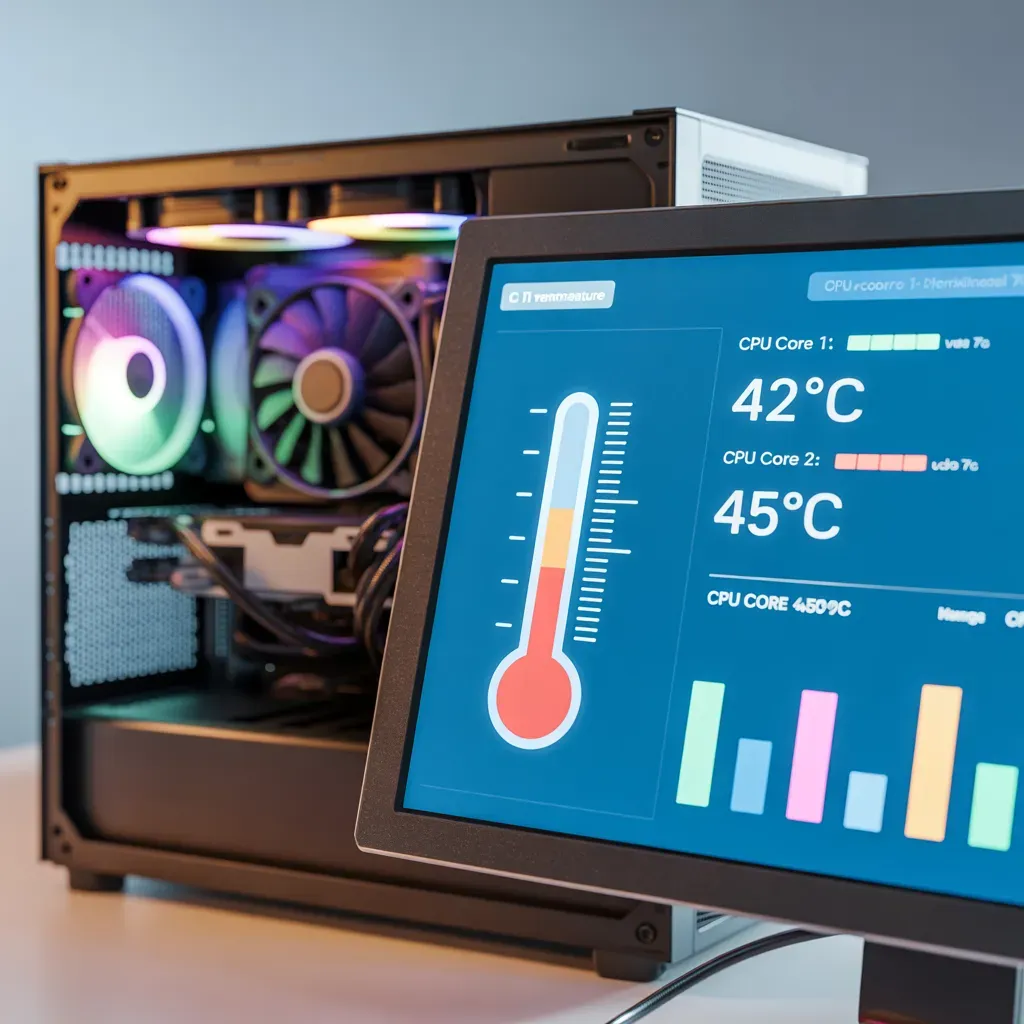
how to read CPU temperature: Check CPU Temperature
To understand how to read CPU temperatures, open the BIOS or use a small monitoring tool like CoreTemp. It shows your processor heat in real time. If the number gets too high, your PC may slow down or shut down. Want to check safely? Start here
Understanding CPU Temperature
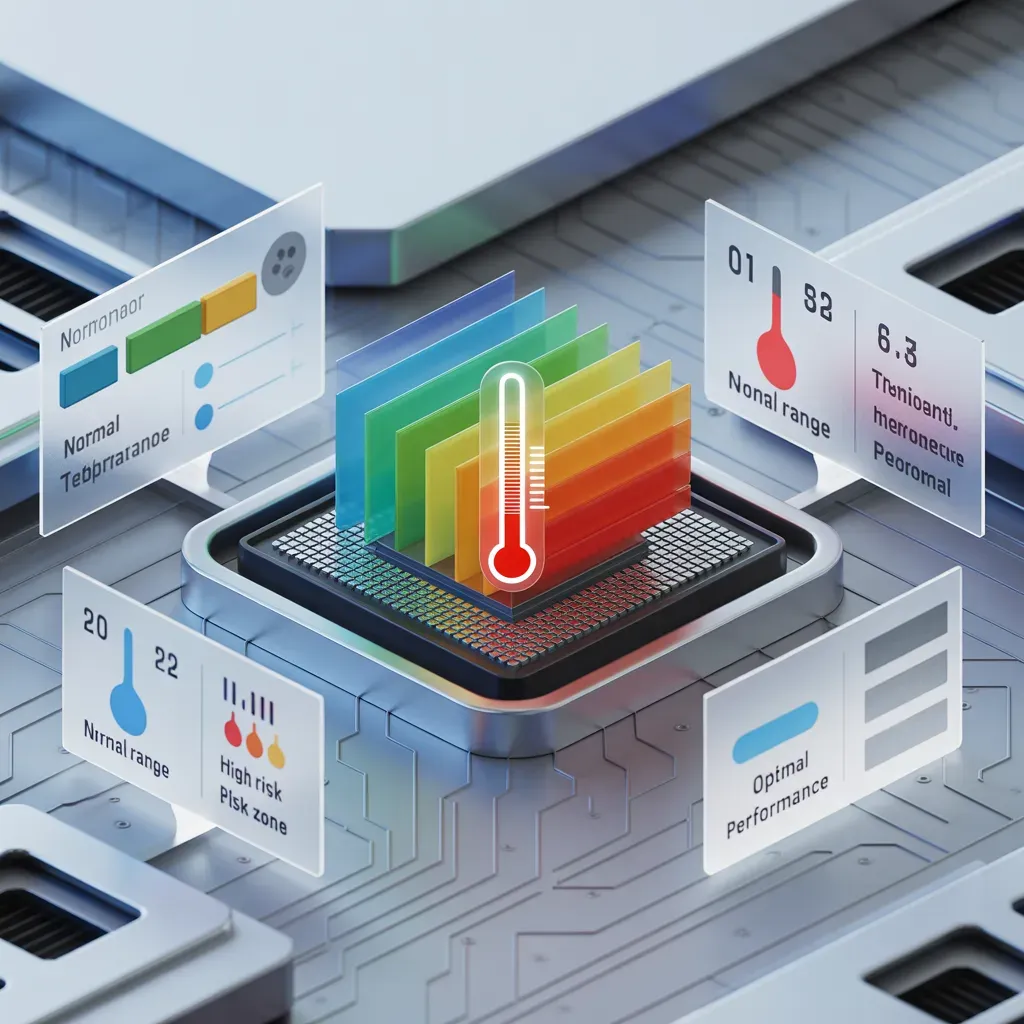
What CPU Temp Means
The CPU temp is the amount of heat your computer’s processor makes while it is working. Opening a program, game, or browser tab makes the CPU work harder, which makes it hotter. Like a car engine, it gets hotter the more it works.
Why Reading CPU Temp Matters
In my experience, many users ignore CPU temperature until it’s too late. High CPU temps can slow your PC, crash your system, and even damage components. By monitoring CPU temperature, you can catch problems early and avoid costly repairs.
Common Misconceptions
Some users think a slightly hot CPU is dangerous. In reality, CPUs are designed to handle heat, but consistently high temps are risky. Others assume BIOS (Basic Input/Output System) readings are always correct—they’re not. Temperature varies with workload, cooling, and sensor readings.
Also Read: What Is a Good CPU Temperature
Normal, Safe, and Critical CPU Temperature Ranges
Idle vs Active Temp
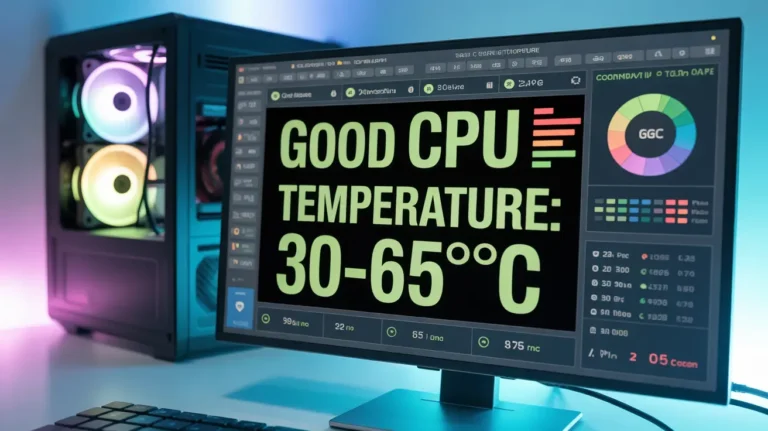
When your PC is idle (doing nothing), most CPUs run between 40°C and 50°C. During normal tasks like browsing or watching videos, the temperature rises to 50°C–70°C. Heavy tasks like gaming or video editing push temps toward 70°C–85°C.
High CPU Temp Risks
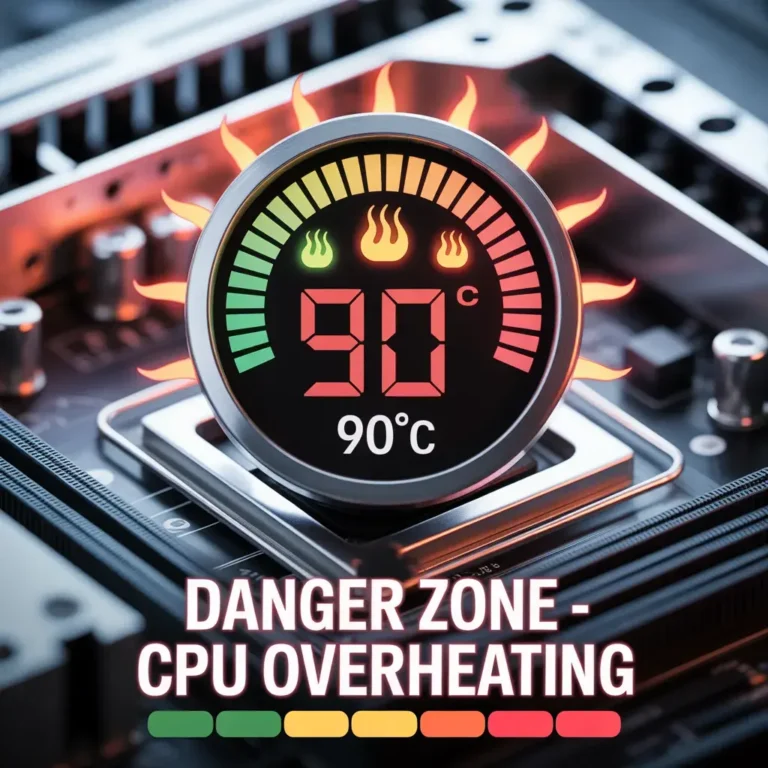
If your CPU exceeds 90°C, you risk thermal throttling, crashes, or permanent damage. Overheating can also shorten your CPU’s lifespan. Always monitor the temperature readings.
How to Read CPU Temp on Your Computer
Using Windows Monitoring Tools
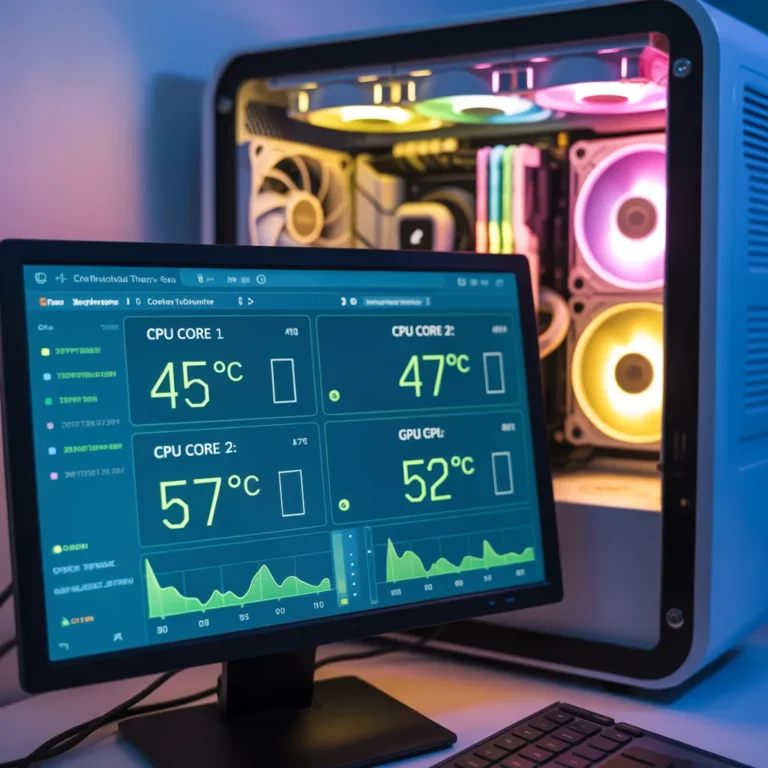
Windows doesn’t show CPU temp by default, but free tools make it easy. Install software like Core Temp or HWMonitor, open it, and look for your CPU’s real-time temperature. These programs display minimum, maximum, and current temps.
Using BIOS to Check CPU Temp
You can also read CPU temperatures in BIOS:
- Restart your PC.
- Press F2, F10, or Delete during boot.
- Enter Hardware Monitor/System Health.
- Check CPU temperature.
BIOS shows idle temperature, but it won’t reflect load-based spikes.
Using Third-Party Software
Popular tools include:
- Core Temp: Simple, lightweight, and shows each core’s temperature.
- HWMonitor: Full system overview, including GPU and motherboard temps.
- Open Hardware Monitor: Free, open-source, and works on Windows.
Each tool provides real-time updates and logging features.
Reading CPU Temp During Heavy Workloads
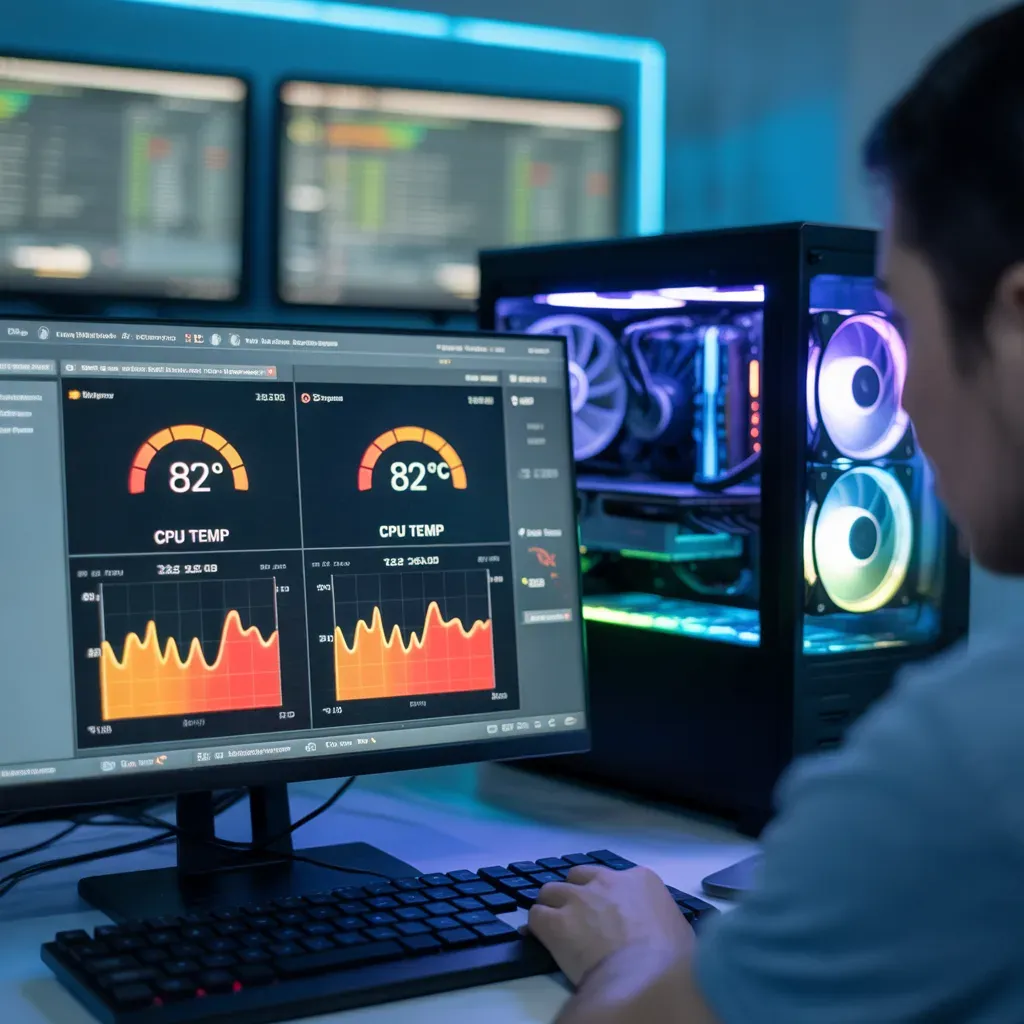
Gaming
Games push your CPU hard. I remember checking my laptop mid-game—one core hit 95°C! That’s too high. Monitoring during gaming helps prevent damage and keeps performance stable.
Video Editing or 3D Rendering
Programs like Premiere Pro or Blender can heat your CPU rapidly. Using monitoring software during rendering ensures your PC doesn’t overheat unexpectedly.
Read Now: CPU Temperature
CPU Temp Issues and Troubleshooting
Signs of High CPU Temperature
- Loud fan noise
- Slow performance
- System crashes or freezes
- Random shutdowns
Causes of Overheating
- Dust buildup: Blocks airflow
- Poor cooling: Inadequate fans or airflow
- Old thermal paste: Reduces heat transfer
- High software load: Too many programs running
- Weak CPU cooler: Fails under heavy load
How to Fix High CPU Temp
- Clean dust from fans and vents
- Improve airflow in the case
- Replace thermal paste if old
- Close unnecessary programs
- Upgrade CPU cooler
Even small fixes can drop temps by 10–20°C, which makes a huge difference.
Common Mistakes and Tips
Mistakes Users Make While Reading CPU Temp
- Checking once and assuming it’s always safe
- Ignoring high temperature warnings
- Using untrusted software
- Blocking vents accidentally
Tips to Keep CPU Temperature Low
- Clean your PC regularly
- Keep it in a cool, open space
- Monitor temps during heavy work
- Upgrade fans or a cooler if needed
FAQ – Most Asked Questions About CPU Temp
Q1: What is a normal CPU temperature?
A: Idle: 40–50°C, Normal use: 50–70°C, Heavy use: 70–85°C. Above 90°C is risky.
Q2: How often should I check CPU temp?
A: Once in a while is enough unless you notice problems.
Q3: Can high CPU temp damage my PC?
A: Yes, prolonged overheating can damage the processor and other components.
Q4: Is BIOS reading accurate?
A: BIOS shows idle temp accurately, but may not reflect real-time load temp.
Q5: Which software is best to read CPU temperatures?
A: Core Temp for simplicity, HWMonitor for detailed monitoring, and Open Hardware Monitor for free open-source use.
Conclusion
Knowing how to read CPU temperatures is a simple step that protects your computer. From checking BIOS to using software, you now have all the tools to monitor your CPU. Regularly monitoring the temperature helps prevent overheating, maintain high performance, and extend your PC’s life. Please feel free to open a monitoring tool today to check on your CPU’s status. Trust me, your PC will thank you!