CPU How Hot Is Too Hot? The Truth About CPU Heat
The brain of your computer is called the Central Processing Unit (CPU). It can slow down, act up, or even get permanently broken if it gets too hot. But not all heat is bad. CPUs are made to work at certain temperatures, even when they’re under a lot of stress. It’s essential to know what the safe limits are and what the warning signs are.
I’ll go over normal CPU temperatures, what happens when your CPU overheats, how to check it, and useful advice for keeping it cool in this guide. By the end, you’ll know when to worry and what to do without any jargon. How to check it and what happens if it overheats
Read more: Why Does CPU Temperature Matter?
Normal CPU Temperatures Explained
Let’s start with the basics: what counts as a “normal” CPU temperature?
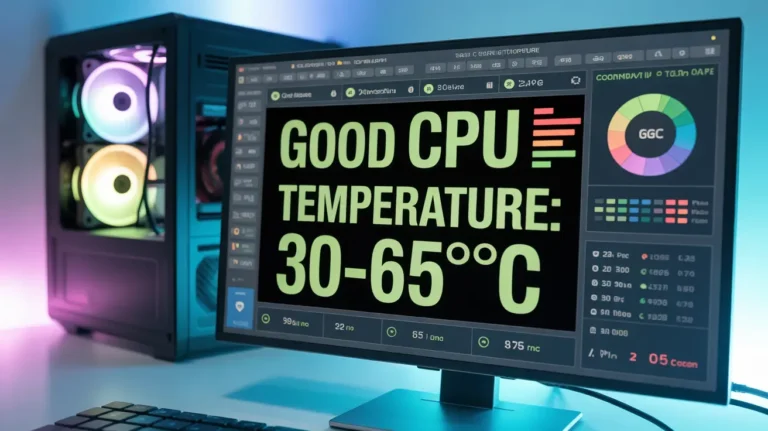
- Idle CPU Temperature: This is the heat your CPU generates when your PC isn’t doing much, maybe just browsing or checking email. Most CPUs sit comfortably around 40–65°C (104–149°F).
- Under Load: When you’re gaming, rendering video, or running heavy software, it’s normal for your CPU to heat up to 70–85°C (158–185°F).
I remember once building a gaming rig and noticing my CPU hit 88°C during a benchmark test. My heart skipped a beat, but after checking the manufacturer’s specs, I realized it was still safe—though I knew I’d need better cooling for prolonged gaming sessions.
Quick tip: Different CPUs have different “normal” ranges. Intel and AMD chips aren’t identical, so always check your specific processor’s safe limits.
What Happens When Your CPU Overheats
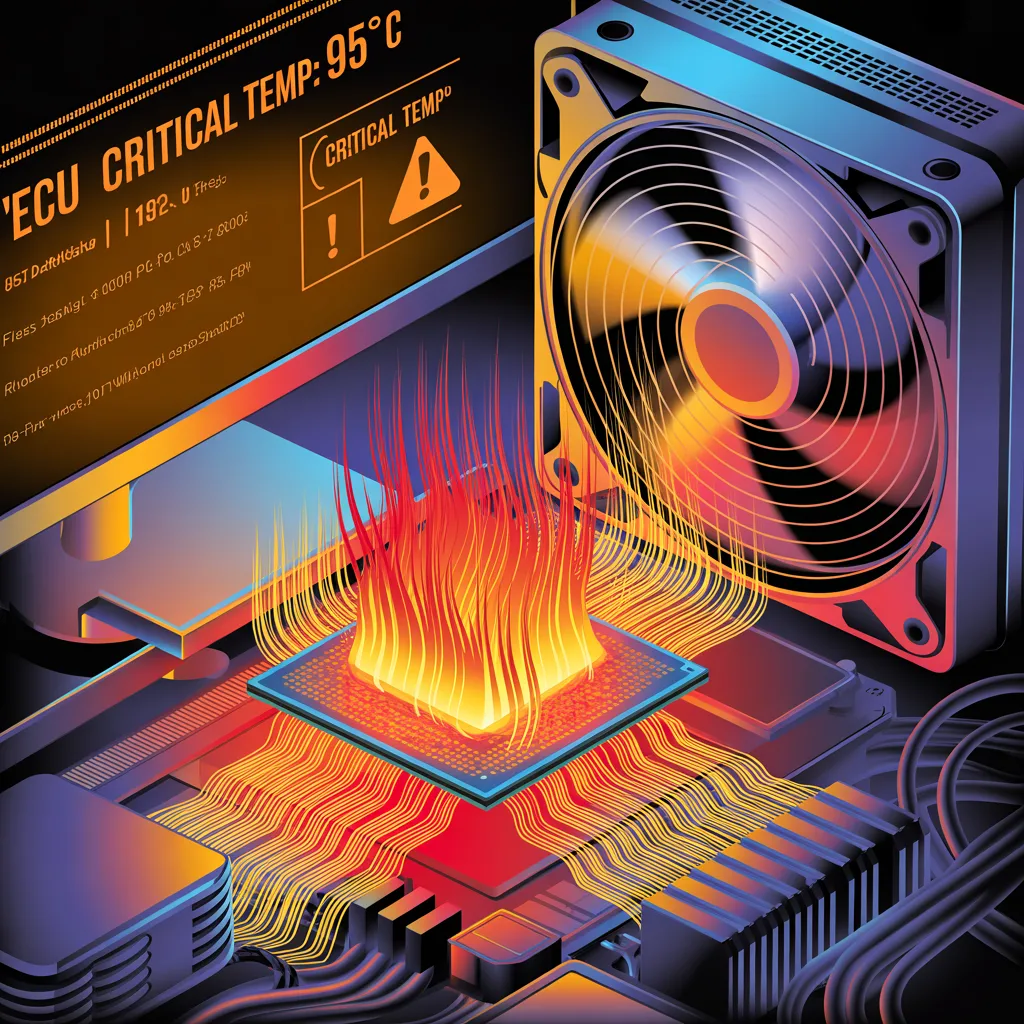
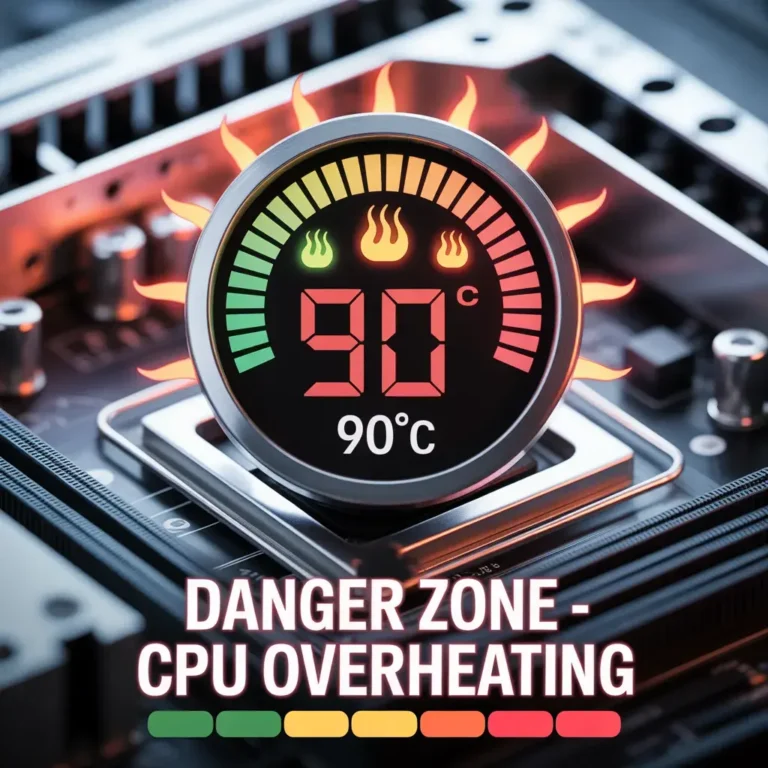
When your CPU goes beyond safe temperatures, usually around 90°C or higher, trouble starts.
Here’s what I’ve noticed happening:
- Performance Drops (Thermal Throttling): The CPU slows itself down to reduce heat. Ever noticed your PC lagging in games suddenly? That’s thermal throttling in action.
- Random Shutdowns: If temperatures get too high, modern CPUs will shut down automatically to prevent damage. Trust me, this happens faster than you think!
- Permanent Damage: Extended periods at extreme heat can degrade the CPU’s lifespan, sometimes irreversibly.
Think of it like a car engine. Driving hard all the time without coolant eventually ruins the engine. The same is true with your CPU; it needs to stay at safe temperatures to last.
Read More: How to Check Your CPU Temperature?
Easy Ways to Know if Your CPU is Too Hot
Here are some telltale signs:
- Loud, constantly running fans
- Sudden lag or stuttering in games or programs
- Random restarts or blue screens
- Your PC feels unusually warm to the touch
Personally, I utilize a combination of software and intuition. If your laptop’s bottom plate feels like a mini heater while idle, that’s a warning. Tools like HWMonitor, Core Temp, or MSI Afterburner give exact readings and are free.
Main Reasons a CPU Gets Overheated
A CPU doesn’t just overheat on its own. In my experience, these are the most common causes:
- Poor Cooling System: Fans, heat sinks, or liquid cooling are not installed properly.
- Dust Build-Up: Dust blocks airflow, making your CPU hotter over time.
- Overclocking: Pushing your CPU beyond factory speeds can generate excessive heat.
- Thermal Paste Issues: If thermal paste is old, dry, or missing, heat transfer to the cooler is inefficient.
- High Ambient Temperature: Using a PC in a hot room or under direct sunlight can push your CPU temps higher.
Even with a good system, small things like a clogged vent can make a huge difference. Once, I cleaned my old PC’s dust, and the idle temperature dropped by 10°C—instant relief!
How to Check Your CPU Temperature Quickly
Checking your CPU temperature is easier than most people think. Here’s a simple guide:
- Use Built-In BIOS/UEFI: Restart your PC and enter BIOS. Most BIOS versions display current CPU temps.
- Windows Task Manager: For some CPUs, Windows 11 shows basic temps under the Performance tab.
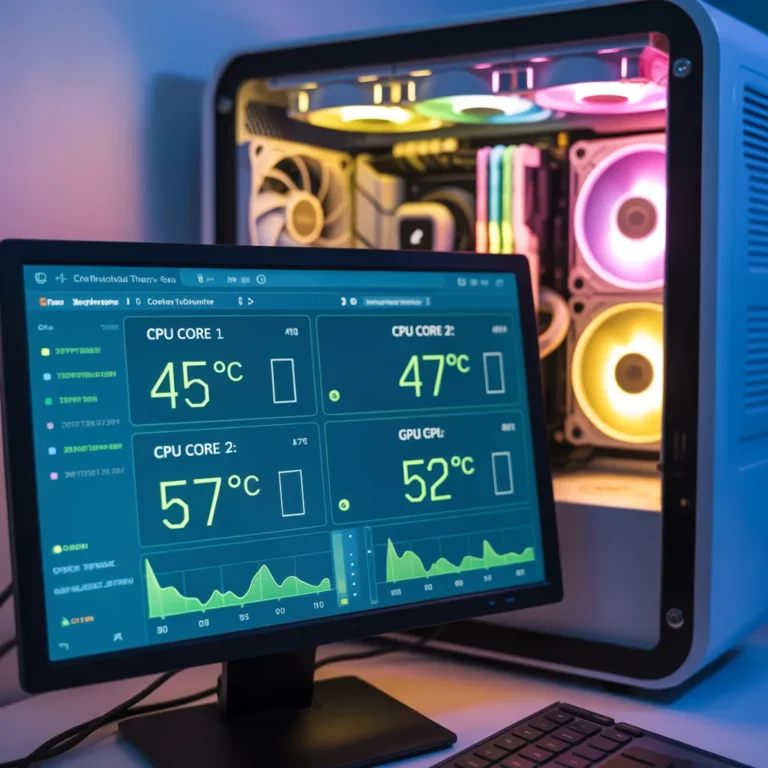
- Third-Party Tools: Free tools like HWMonitor, Core Temp, Speccy, or MSI Afterburner give detailed readings for each CPU core.
When I monitor temps, I usually run a stress test while watching readings to see how hot my CPU gets under heavy use. This helps me know if my cooling is sufficient.
Simple Tips to Cool Down a Hot CPU
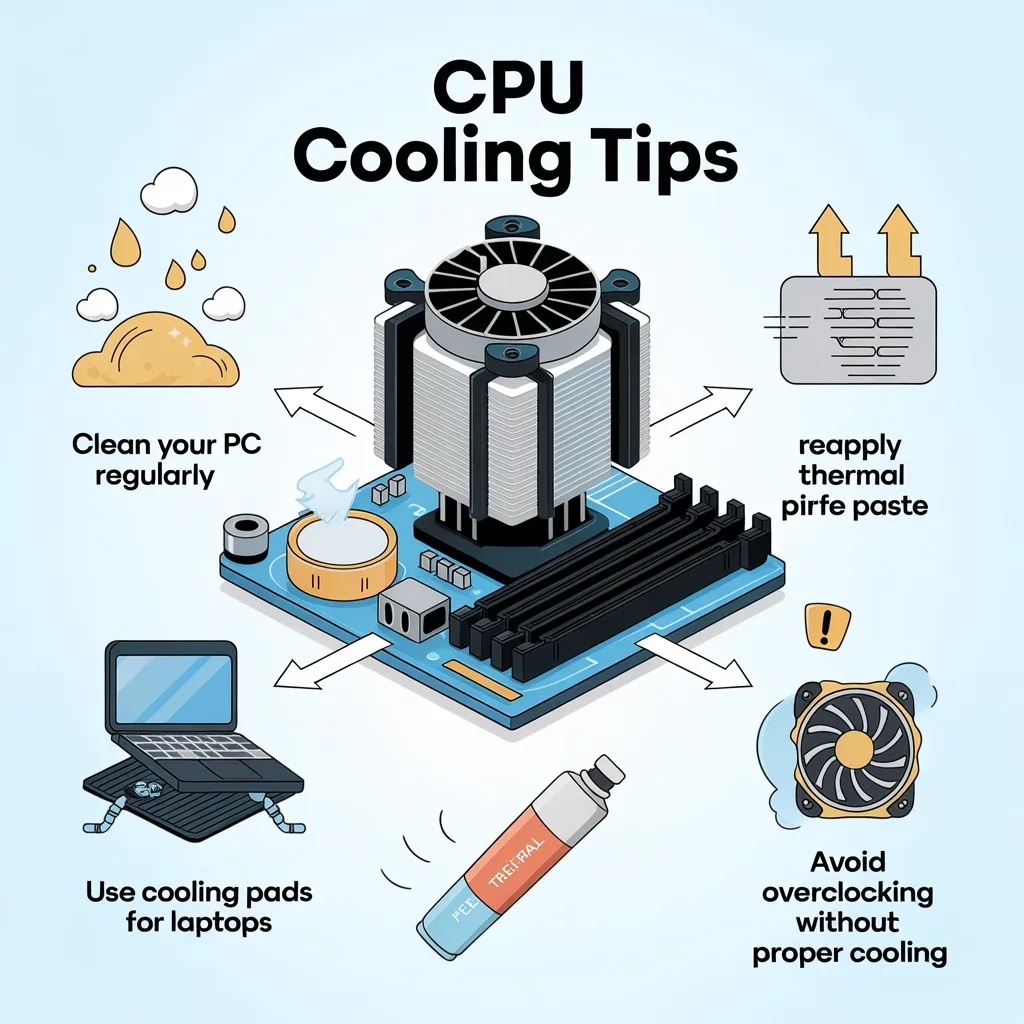
Keeping your CPU cool doesn’t have to be complicated. Here’s what I do:
- Clean Your PC Regularly: Dust can block airflow, making CPUs hotter.
- Improve Case Airflow: Add more fans or rearrange components for better airflow.
- Reapply Thermal Paste: Every few years, fresh thermal paste can reduce temps by 5–10°C.
- Use Cooling Pads for Laptops: Laptops get hotter than desktops—cooling pads help.
- Avoid Overclocking Without Proper Cooling: Pushing your CPU without extra cooling is asking for trouble.
Even small steps like repositioning your PC away from walls or vents can make a noticeable difference.
Safe Temperature Ranges for Different CPUs
Different CPUs tolerate heat differently:
- Intel Desktop CPUs: 40–65°C idle, 70–85°C under load, 95°C max.
- AMD Ryzen CPUs: 35–60°C idle, 70–80°C under load, 95°C max.
- Laptop CPUs: Typically run hotter due to compact design; 50–65°C idle, and 80–90°C under load is normal.
Knowing your CPU’s specs is crucial. Overheating is less about a specific number and more about duration. Brief spikes aren’t usually harmful, but sustained high temps are.
Mistakes That Make CPUs Heat Up Fast
Some common mistakes can turn your CPU into a mini oven:
- Blocking Vents: Placing your laptop on a bed or couch.
- Ignoring Dust: Dust inside the PC can accumulate faster than you think.
- Cheap Cooling Solutions: Low-quality fans or thermal paste can’t handle heat effectively.
- Running High-Performance Apps Non-Stop: Some software, like heavy games or rendering programs, pushes the CPU constantly.
- Overclocking Without Monitoring: Pushing your CPU too far without checking temps is risky.
I’ve learned the hard way; my first overclocked rig overheated because I ignored airflow. Lesson learned: cooling matters more than bragging rights.
When to Worry About CPU Heat and Take Action
Here’s when you should be genuinely concerned:
- Temps reach 90°C+ for prolonged periods
- Thermal throttling slows your PC constantly
- Fans are loud, and the case feels like an oven
- Random shutdowns or crashes happen
If any of these occur, act fast: clean your PC, improve cooling, or consult a professional. Ignoring high CPU temps can shorten your CPU’s life and affect your PC’s performance.
Conclusion:
CPU heat is normal, but too much can be dangerous. By monitoring your temps, keeping your system clean, and using proper cooling, you can keep your CPU running smoothly for years. Remember: a cooler CPU is a happier CPU and a happier user.
I’ve shared the practical tips and personal experiences I’ve learned over the years, ensuring you don’t have to discover them yourself. Monitor the temperature, promptly address any warning signs, and your PC will reward you with dependable performance.
FAQ
Q1: Can a CPU get permanently damaged from heat?
Yes, prolonged temperatures above 90–95°C can reduce CPU lifespan or cause permanent failure.
Q2: Is it normal for a gaming CPU to hit 85°C?
Yes, under heavy load or gaming, 70–85°C is typical. Short spikes aren’t harmful.
Q3: Can software reduce CPU heat?
Indirectly, apps that reduce background tasks or manage power settings can lower CPU load and temperature.
Q4: Does thermal paste really help?
Absolutely. Old or dried thermal paste reduces heat transfer, increasing CPU temperature