What Is a Good CPU Temperature? Learn What’s Safe!
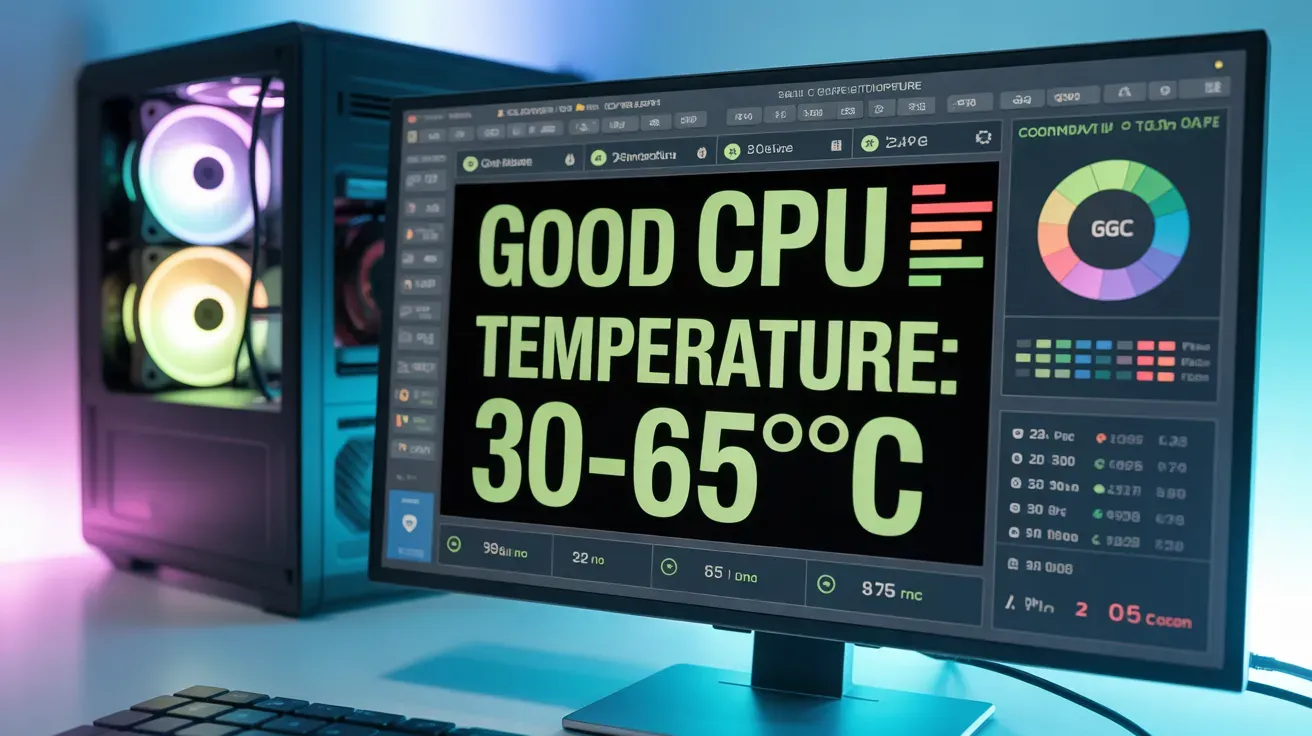
A good CPU temperature is usually between 40°C and 60°C (104°F and 140°F) when idle and can rise to 75°C to 85°C (167°F to 185°F) under load. Anything higher may cause overheating and damage. Always monitor and ensure proper cooling.
Let’s take a look at what’s considered a good CPU temperature and how to keep it cool.
Why Does CPU Temperature Matter?
Your CPU temperature is important because if it gets too high, it can cause slowdowns, crashes, or even permanent damage to your computer. Keeping the CPU cool helps it run smoothly and last longer.
But what is a “good” temperature? Let’s find out!
Read More: Understanding CPU Temperature
What is a good and safe CPU temperature?
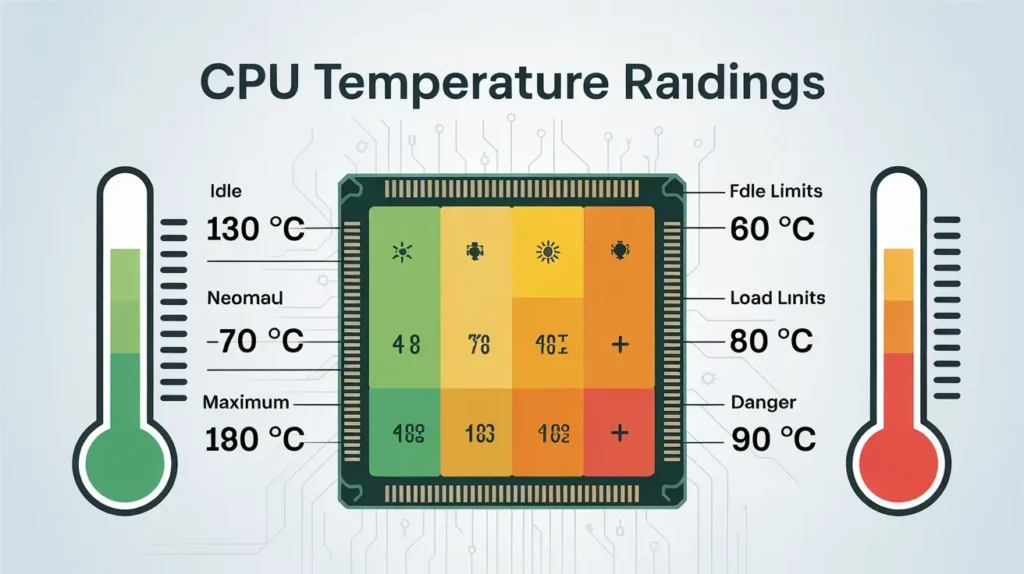
A favorable CPU temperature depends on the amount of work the CPU is doing. Here are the general temperatures:
- Idle Temperature: When your computer is doing light tasks, the CPU temperature should be between 30°C and 40°C (86°F and 104°F). This is when you’re just browsing the web or doing basic work.
- Under Load: When the CPU is working harder (like when you’re playing games or editing videos), the temperature can go up to 60°C to 70°C (140°F to 158°F). This is still safe and normal.
- Maximum Safe Temperature: Most modern CPUs can handle temperatures up to 80°C (176°F) without any problems. However, it’s better to keep it lower to help your CPU last longer.
- Danger Zone: If your CPU reaches 90°C (194°F) or higher, it’s a serious problem. Temperatures above this can cause immediate damage, so take action quickly.
What Affects CPU Temperature?
Several things can make your CPU hotter. Here are some of the main reasons:
- Cooling System: Your computer uses fans and heat sinks to keep the CPU cool. If the cooling system is faulty or broken, the CPU will overheat.
- Workload: Running heavy programs (like video games or video editing software) makes the CPU work harder, which generates more heat.
- Room Temperature: The room temperature where your computer is located also affects the CPU. If the room is too hot, the cooling system will have a harder time keeping the CPU cool.
- Overclocking: If you push your CPU to run faster than normal (called overclocking), it will produce more heat. Overclocking requires better cooling to keep the CPU temperature down.
- Dust: Dust can block airflow inside your computer, making it harder for the fans to keep the CPU cool.
How to Check Your CPU Temperature?
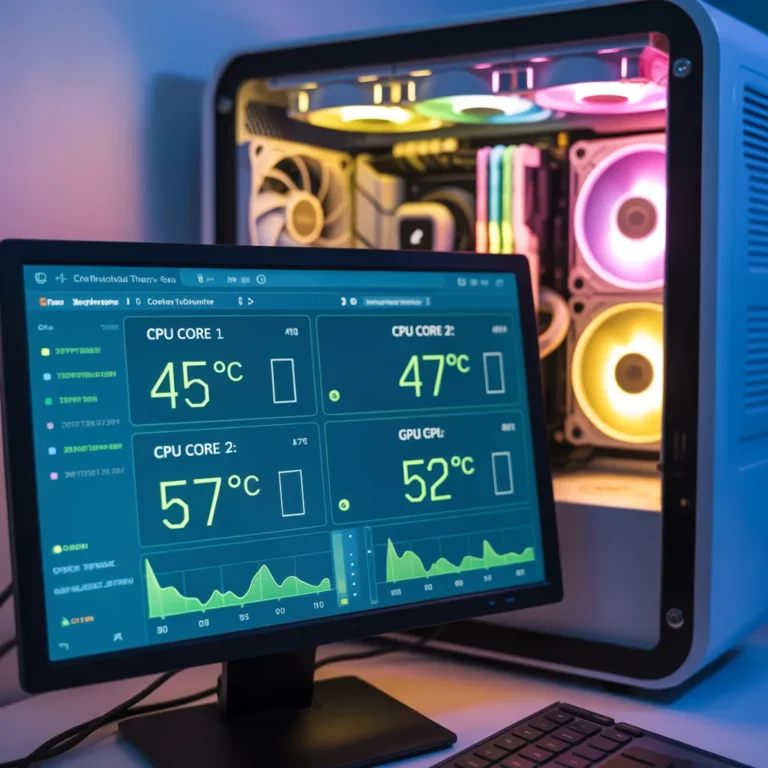
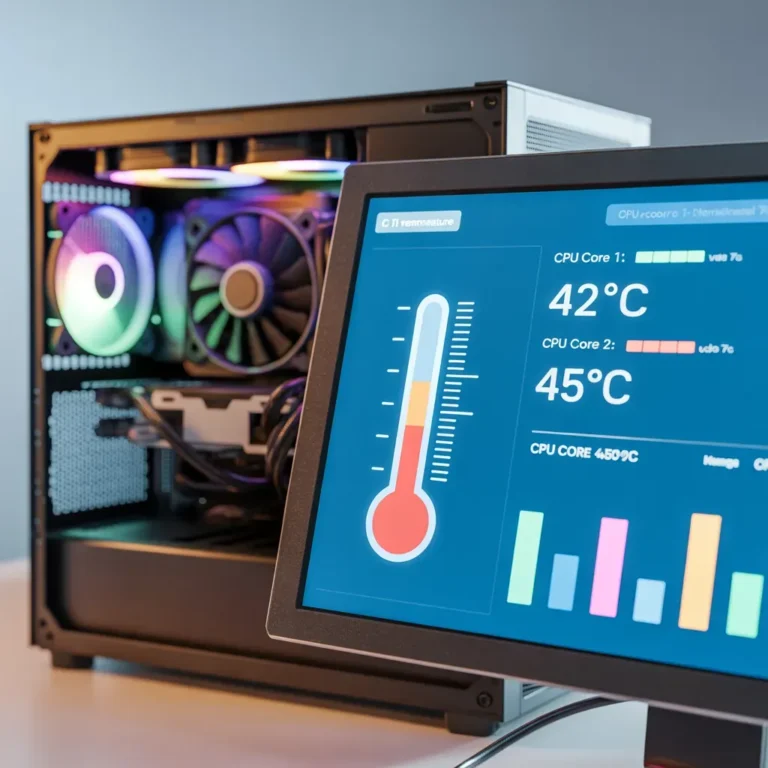
It’s important to check your CPU temperature regularly to ensure it doesn’t run too hot. Here are some easy ways to check:
- BIOS/UEFI: You can check the CPU temperature in your computer’s BIOS settings. To do this, restart your computer and press the key (usually F2 or Delete) to enter the BIOS. There, you’ll find the temperature listed.
- Third-Party Software: You can download free programs to check the CPU temperature while the computer is running. Some popular options are
- Core Temp
- HWMonitor
- SpeedFan
- Infrared Thermometer: If you want to check the temperature quickly without using software, you can use an infrared thermometer. It measures the heat without touching the CPU.
For more information, click here: What Happens When Your CPU Overheats
What Happens When Your CPU Gets Too Hot?
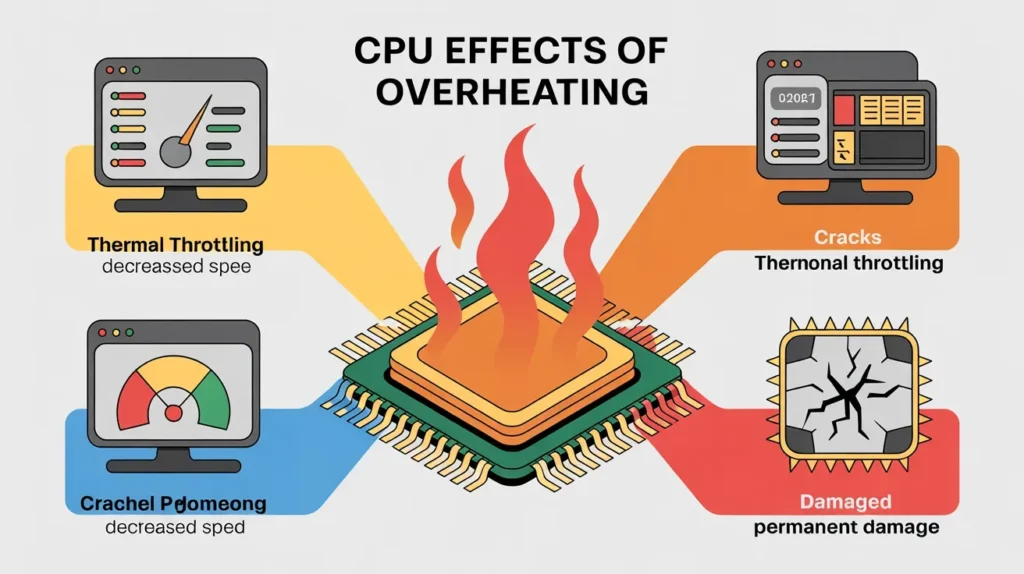
If your CPU is too hot, it can cause several issues:
- Slower Performance: When the CPU gets too hot, it slows down to protect itself. This is called thermal throttling, and it can make your computer feel sluggish.
- System Crashes: High CPU temperatures can cause your computer to freeze or crash unexpectedly.
- Permanent Damage: If the CPU stays too hot for an extended period, it can permanently damage the processor. This could mean you need to replace your CPU or computer.
How to Cool Down Your CPU
If your CPU is getting too hot, here are some simple steps you can take to cool it down:
- Improve Airflow: Ensure there’s enough space inside your computer for airflow. You can add extra fans or move the existing ones to improve airflow.
- Clean Your Computer: Dust can clog airflow, so clean your computer regularly, especially the fans and heat sinks.
- Upgrade Your Cooling System: If your CPU often overheats, you may need a more effective cooling setup. Consider getting a better fan, heat sink, or even liquid cooling if you’re running demanding programs like games or video editing software.
- Reapply Thermal Paste: Thermal paste helps transfer heat from the CPU to the cooler. Over time, it can dry out and lose its effectiveness. Reapplying fresh thermal paste can improve cooling.
- Keep Your Room Cool: Make sure your computer is in a cool, well-ventilated room. Using air conditioning or placing your computer in a cooler spot can help.
Conclusion
Keeping your CPU temperature in check is important for your computer’s performance and longevity. Aim for a temperature between 30°C and 40°C when idle and 60°C and 70°C under load. If your CPU temperature goes above 80°C, it’s time to take action.
FAQs
1. What is considered a safe CPU temperature?
A safe CPU temperature is generally below 80°C (176°F), with idle temperatures between 30°C and 40°C and load temperatures between 60°C and 70°C.
2. How do I check my CPU temperature?
You can check your CPU temperature through BIOS/UEFI, third-party software like Core Temp, or an infrared thermometer.
3. What happens if my CPU gets too hot?
If your CPU gets too hot, it can cause slowdowns, system crashes, and, in extreme cases, permanent damage to the processor.
4. How can I cool down my CPU?
Improve airflow in your PC case, clean the dust, upgrade the cooling system, or reapply thermal paste to keep your CPU cool.
5. What is thermal throttling?
Thermal throttling occurs when the CPU slows down to prevent overheating, which can make your computer sluggish.