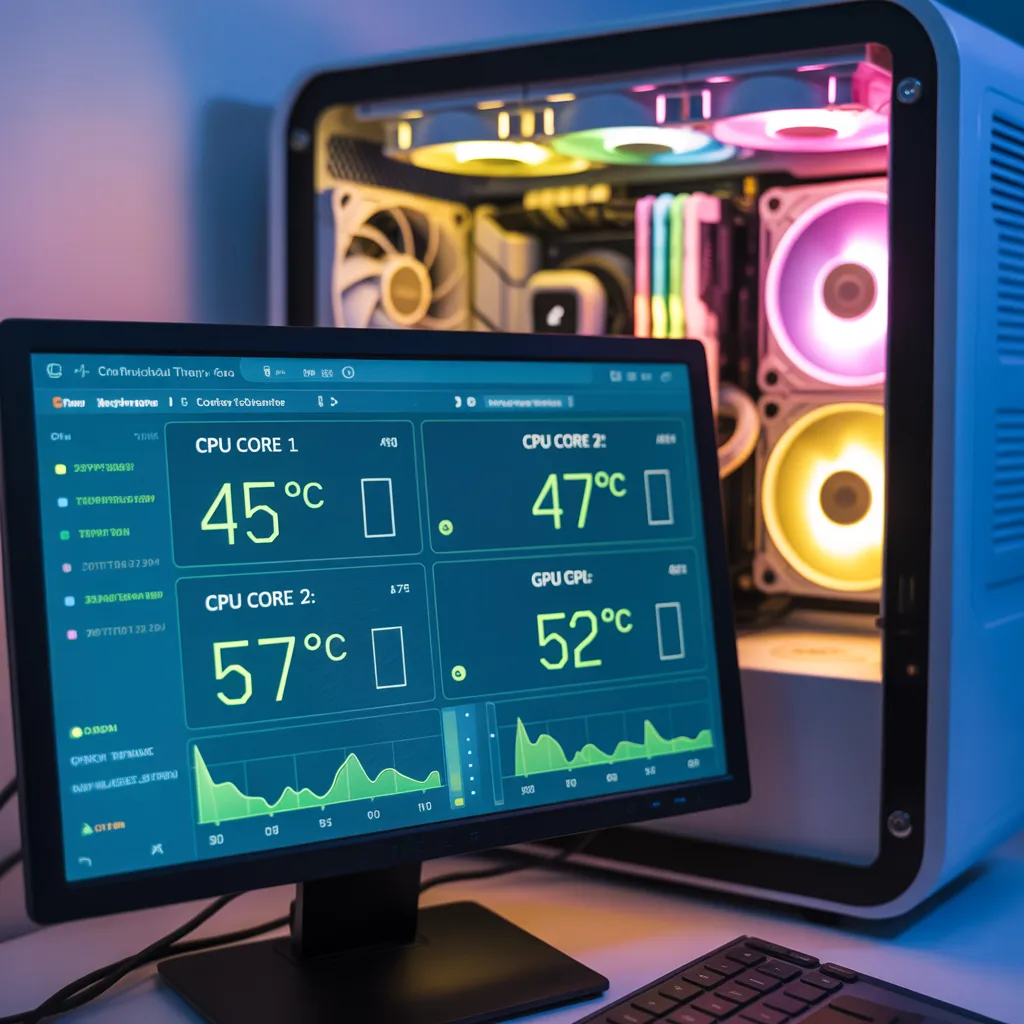
How to Check CPU Temperature | 2026 Guide!
Monitoring your computer’s health is more important than ever. One key factor is your CPU temperature. Many people ignore it until their PC starts lagging or shutting down. Knowing how to check CPU temperature helps prevent overheating, slow performance, and even permanent damage. In this 2026 guide, we will show you easy ways to check CPU temperature on Windows, Mac, and Linux. You will also learn how to keep your CPU cool, understand safe temperature ranges, and use the best tools for monitoring.
Understanding your CPU temperature is not just for tech experts. Even beginners can follow this guide and keep their PC safe. By checking CPU heat regularly, you improve your computer’s lifespan, prevent crashes, and maintain smooth performance.
What is CPU Temperature and Why It Matters
CPU Temperature is defined as the temperature of your computer. The CPU performs all the tasks in your computer. When your CPU is performing tasks, it produces heat. When the CPU produces too much heat, it slows down your computer and may damage your CPU. Knowing your CPU Temperature is important in making informed decisions about your computer. For instance, if your CPU is always hot, you may need to improve your cooling system. Even gamers and professionals running heavy software benefit from monitoring CPU heat. A safe CPU temperature ensures stability and efficiency and prevents unexpected shutdowns.
For More information: What Is CPU Temperature?
How to Check CPU Temperature on Windows
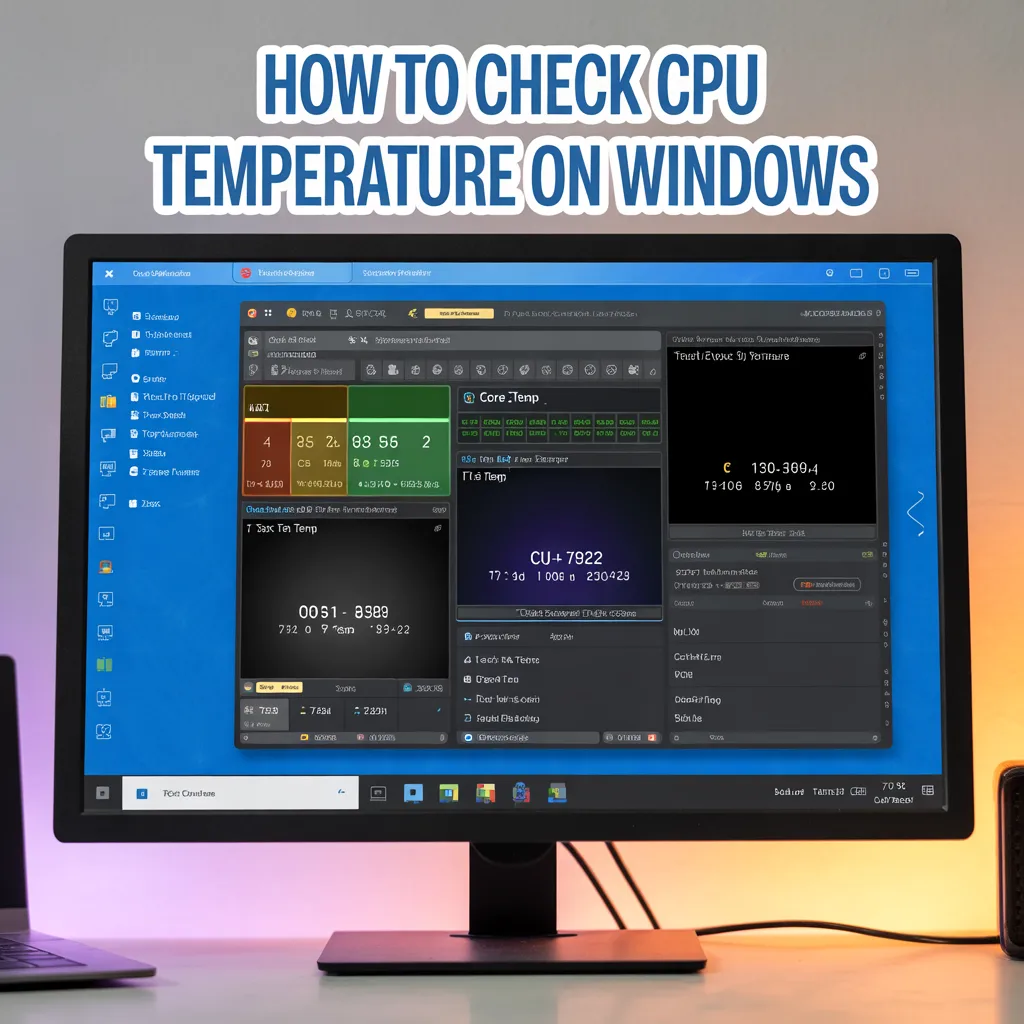
Windows users have several ways to check their CPU temperature. You can use the BIOS or UEFI, which are built-in system tools. Restart your PC and press the designated key (usually F2, Delete, or Esc) to enter BIOS. Inside, you can find your CPU temperature in the hardware monitor section. This method is accurate but not real-time while you work on your PC.
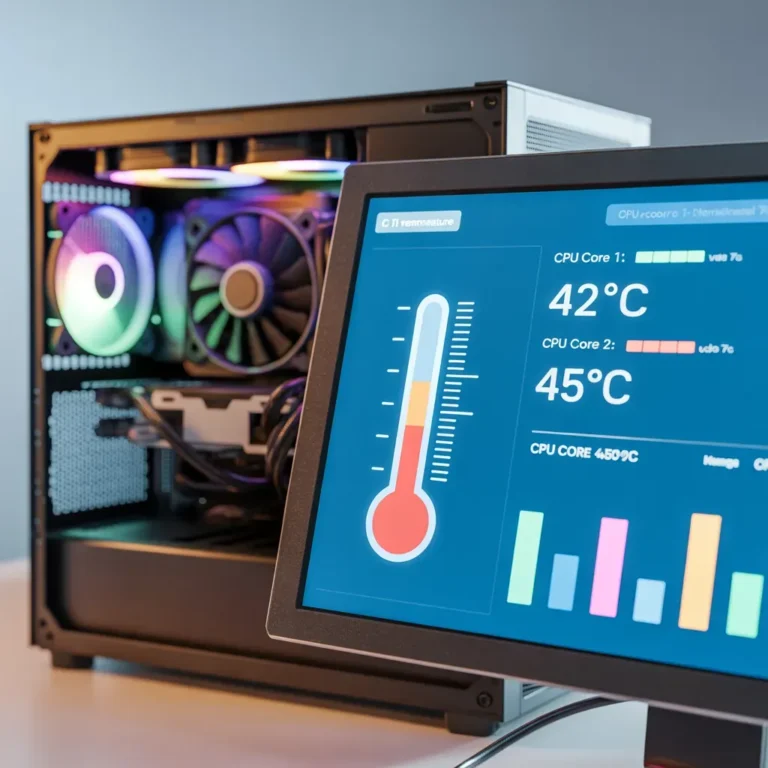
For real-time monitoring, Windows users can install free software. Tools like Core Temp, HWMonitor, and Speccy show CPU temperature instantly. Once installed, open the program, and it will display CPU heat, core temperatures, and load levels. You can monitor which applications are heating your processor the most. Using software is easier than BIOS for beginners and gives live readings. Many of these apps also let you set alerts when your CPU temperature goes above a safe range.
How to Check CPU Temperature on Mac
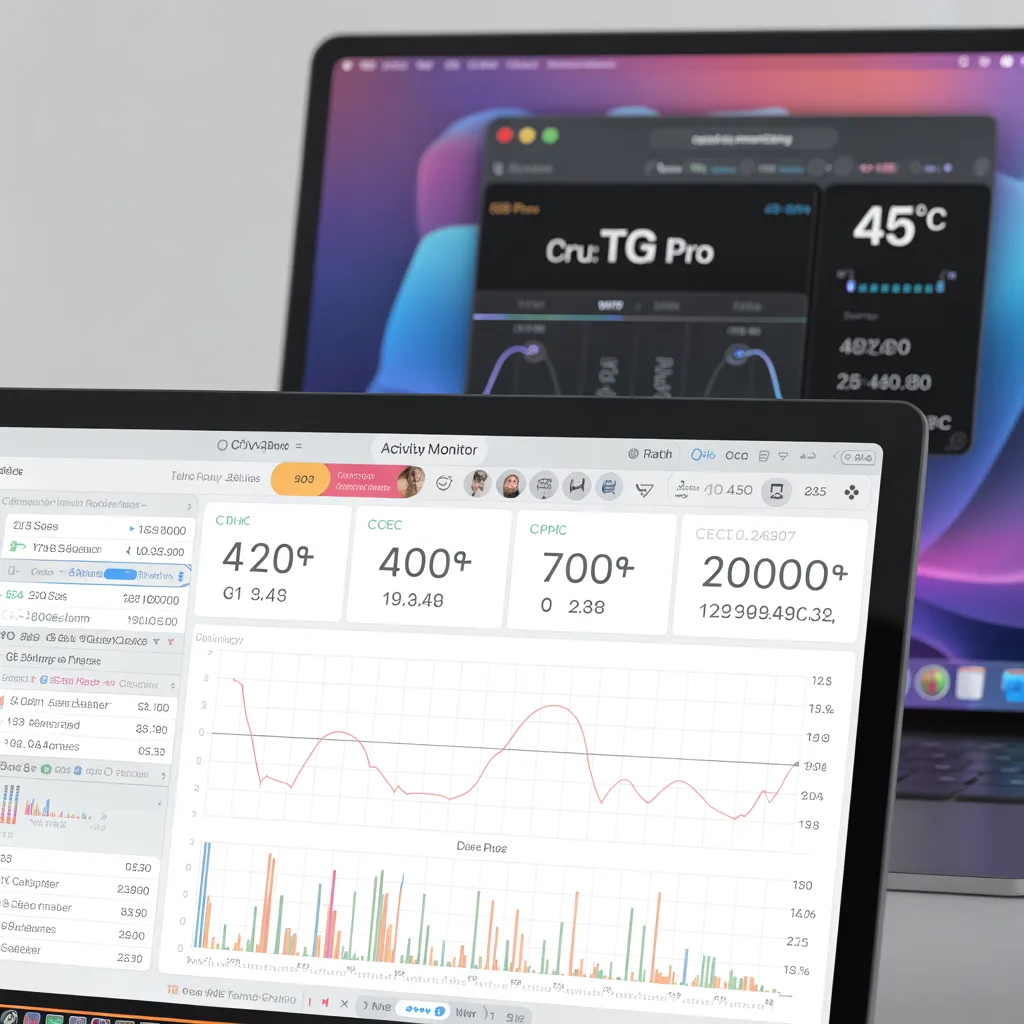
Mac users can also check CPU temperature using third-party applications. Macs do not have built-in software that shows detailed CPU temperature, so tools like iStat Menus or Macs Fan Control are helpful. These apps display real-time CPU heat, fan speeds, and system load.
Checking CPU temperature on a Mac is important, especially for MacBook users. Overheating can shorten battery life and cause sudden shutdowns. By monitoring heat, you can decide if you need to reduce heavy tasks or clean your laptop vents. Macs are designed to manage heat well, but constant high temperatures can still affect performance over time. These apps also allow you to set custom fan speeds to cool down your CPU when needed.
How to Check CPU Temperature on Linux
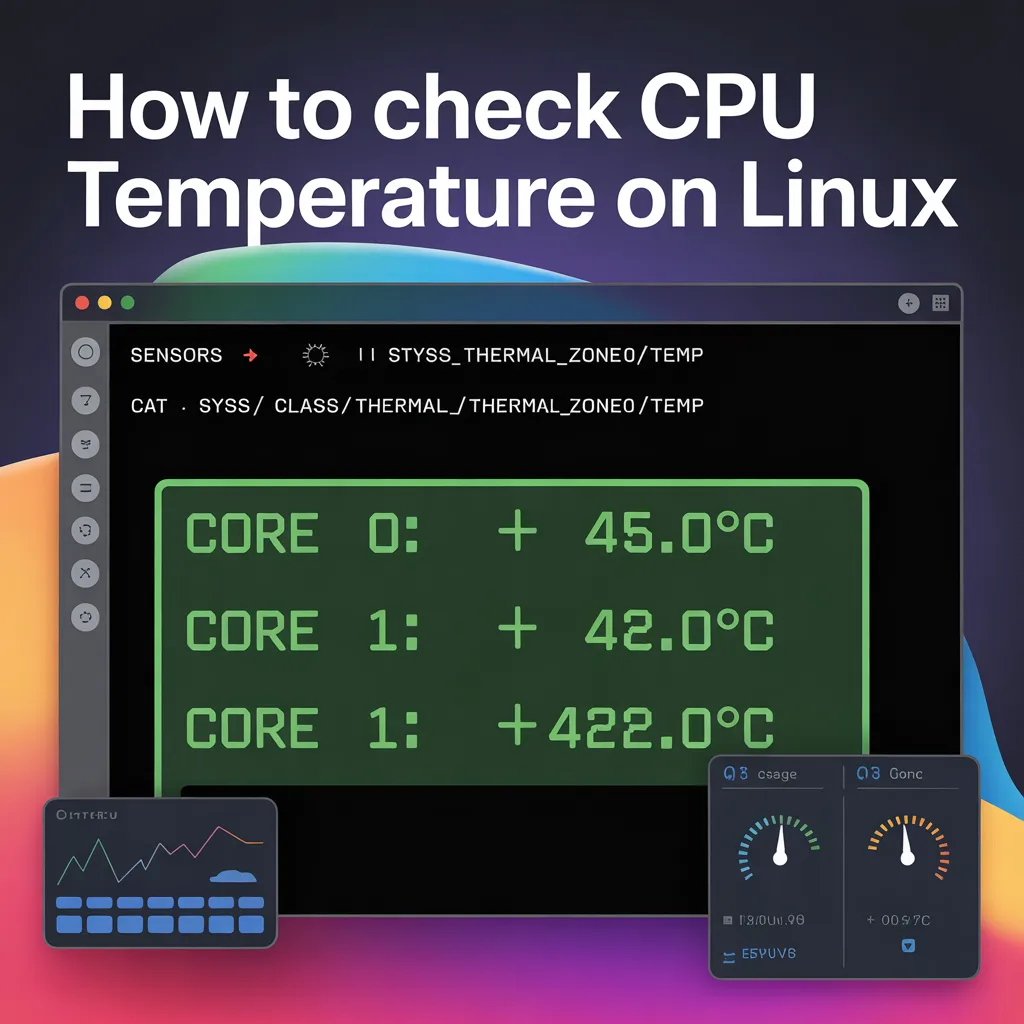
Linux users have both command-line and graphical options to monitor CPU temperature. Using the terminal, you can type commands like sensors (from the lm-sensors package) to get a detailed reading of your CPU heat. This shows current temperature, core temperature, and maximum safe limits.
For users who prefer a visual interface, apps like Psensor or Hardinfo can display CPU temperature in graphs. Linux users, especially developers or gamers, benefit from real-time monitoring because Linux does not automatically alert you if CPU temperature gets too high. Checking CPU temperature ensures stability when running heavy programs or gaming on Linux systems.
Signs Your CPU is Overheating
Your PC can tell you when your CPU is too hot. Common signs include sudden slowdowns, random shutdowns, loud fan noise, and even blue screens. If your laptop feels unusually hot near the keyboard or the bottom case, it is a warning sign.
Ignoring these signs can lead to permanent CPU damage. Overheating may reduce your CPU’s lifespan and affect other components like RAM and the motherboard. Monitoring CPU temperature and responding to early signs can save you money and prevent data loss. Some advanced tools even provide alerts when the CPU temperature crosses safe levels, helping you take action before damage occurs.
Ideal CPU Temperature Ranges
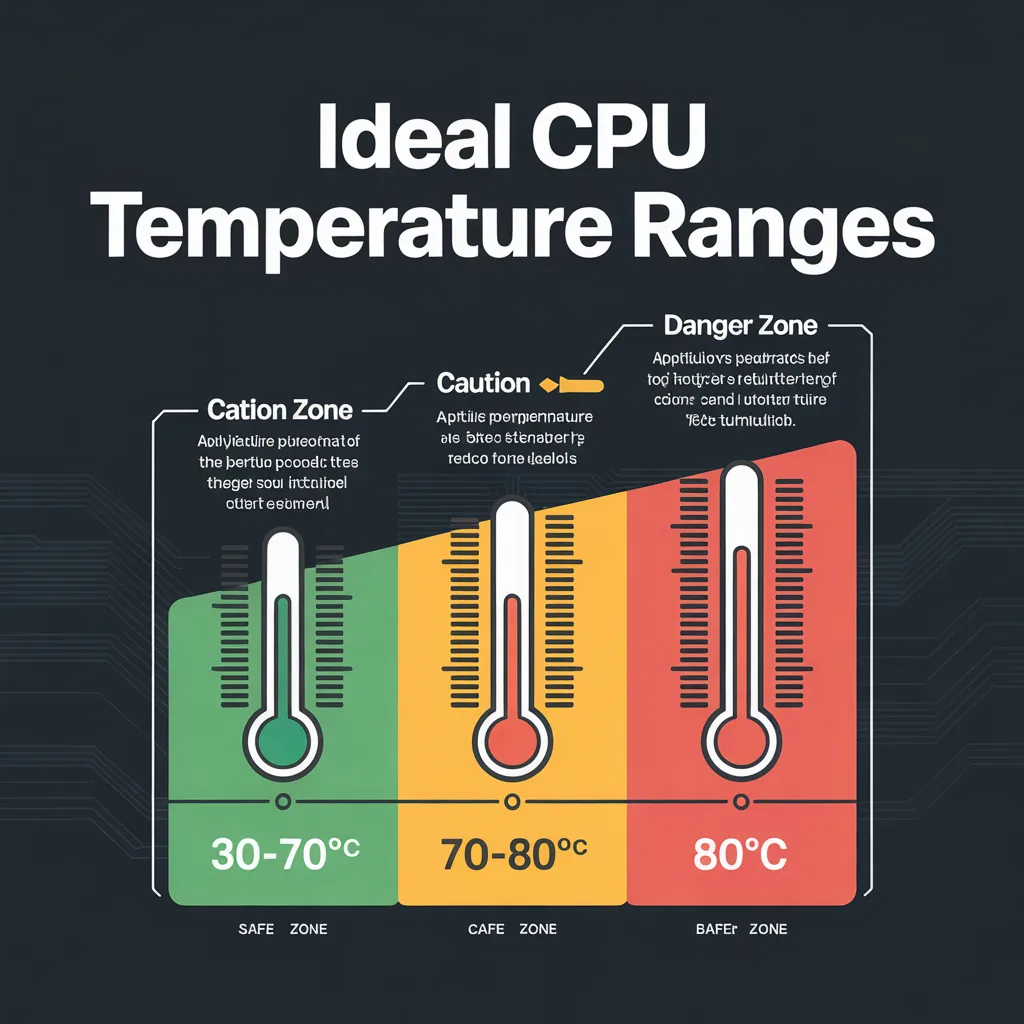
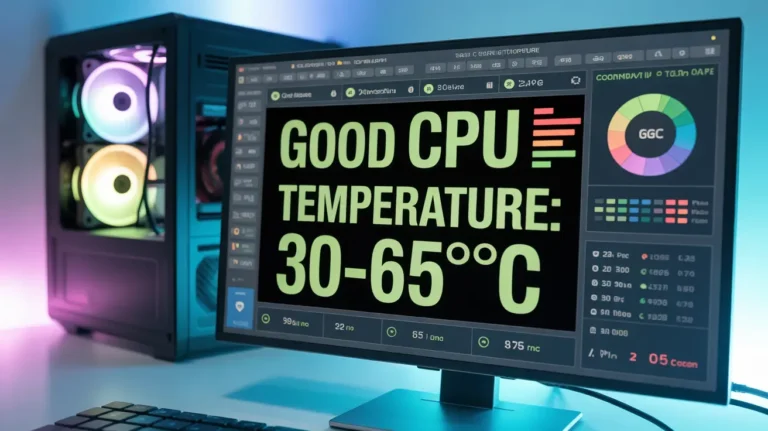
Different CPUs have different safe temperature ranges. For most modern Intel and AMD processors, idle CPU temperature should be between 30°C and 50°C, while under heavy load, it should stay below 80°C to 85°C. For Apple M1 or M2 CPUs, normal load temperatures are lower, usually 40°C to 60°C.
| CPU Type | Idle Temp (°C) | Load Temp (°C) | Max Safe Temp (°C) |
| Intel Core i7 | 30–40 | 70–80 | 100 |
| AMD Ryzen 7 | 35–45 | 75–85 | 95 |
| Apple M1/M2 | 40–50 | 60–70 | 95 |
Maintaining CPU temperature within safe limits improves efficiency and avoids overheating risks. Knowing these ranges allows you to monitor your PC effectively and take immediate action when necessary.
What to Do if Your CPU Temperature is Too High
If your CPU temperature is too high, there are several ways to reduce it. First, check for dust inside your PC case. Dust blocks airflow and makes cooling less efficient. Cleaning fans and vents can lower CPU heat immediately.
Next, improve airflow by arranging cables neatly and adding extra fans if needed. You can also reapply thermal paste between the CPU and heatsink, which improves heat transfer. For laptops, using a cooling pad helps maintain lower temperatures. In extreme cases, upgrading your CPU cooler or switching to a liquid cooling system can keep temperatures stable. Following these steps ensures your PC remains safe during heavy tasks or gaming.
Tips to Keep Your CPU Cool Over Time
Keeping your CPU cool is easier when you follow daily habits. Avoid running too many heavy programs simultaneously. Make sure your PC or laptop is in a well-ventilated area. Regularly clean your computer to remove dust and debris.
Monitoring CPU temperature periodically is essential. Many software tools allow real-time tracking and alerts. For laptops, avoid using them on soft surfaces like beds or couches, which block airflow. Additionally, updating your operating system and drivers can improve power management and reduce CPU load. By combining simple habits with monitoring, your CPU stays safe, and your PC works efficiently for years.
Read Here: Understanding CPU Temperature
Best Tools to Monitor CPU Temperature in 2026
In 2026, several tools make monitoring CPU temperature easy and effective. Core Temp is lightweight and shows per-core temperatures. HWMonitor gives detailed readings for CPU, GPU, and motherboard sensors. Speccy is beginner-friendly and provides full system health reports.
For Mac users, iStat Menus and Macs Fan Control are top choices, while Linux users can use psensor or lm-sensors. Many of these tools now support alerts for high CPU heat, making real-time monitoring simple. Choosing the right tool ensures you can track CPU temperature accurately, maintain safe levels, and prevent overheating issues before they cause damage.
Monitoring CPU temperature is not just a technical task. It is an essential habit for anyone using a computer. By checking CPU heat, understanding safe ranges, recognizing signs of overheating, and following cooling tips, you can keep your PC safe and fast. Use the tools mentioned above to monitor CPU temperature in 2026 and ensure your system runs smoothly. A well-cooled CPU improves performance, prevents hardware damage, and extends the life of your computer.
Absolutely! Let’s continue by adding a comprehensive table of the best CPU temperature monitoring tools in 2026, with features, pros, and cons. This will make your article more authoritative and actionable for readers while improving SEO and user engagement.
Top CPU Temperature Monitoring Tools in 2026
| Tool Name | Platform | Key Features | Pros | Cons |
| Core Temp | Windows | Per-core temperature, load readings, alerts | Lightweight, easy to use, real-time monitoring | Limited advanced features |
| HWMonitor | Windows | CPU, GPU, motherboard, and storage sensors | Detailed system information, free version | Interface can feel crowded |
| Speccy | Windows | Full system overview, temperature logs | Beginner-friendly, colorful UI | Limited real-time alert setup |
| iStat Menus | Mac | Real-time CPU, GPU, and fan monitoring | Beautiful UI, customizable alerts | Paid software |
| Macs Fan Control | Mac | Fan speed control, CPU temperature display | Helps reduce overheating, adjustable fans | UI not as intuitive |
| Psensor | Linux | Graphical CPU, GPU, and fan monitoring | Simple interface, customizable graphs | Requires configuration |
| lm-sensors | Linux | Terminal-based CPU and motherboard monitoring | Lightweight, powerful, scriptable | Command-line may intimidate beginners |
Final Thoughts
Keeping track of CPU temperature is a simple yet powerful way to protect your computer in 2026. Monitoring your CPU heat regularly, recognizing signs of overheating, and following cooling tips ensures smooth performance, longer hardware life, and peace of mind. Whether you are a Windows, Mac, or Linux user, there is a reliable method to check CPU temperature and prevent problems.
Frequently Asked Questions
1. What is a safe CPU temperature for my computer?
A safe CPU temperature depends on the processor type. Most Intel and AMD CPUs stay safe between 30°C and 50°C at idle and below 80°C under heavy load.
2. Can high CPU temperature damage my computer?
Yes. Excessive CPU heat can permanently damage the processor and other components like the motherboard and RAM. High temperatures can also lead to random shutdowns, data loss, and reduced performance.
3. How often should I check my CPU temperature?
It is a good habit to check CPU temperature at least once a week if you run heavy programs or games.
4. What should I do if my CPU temperature is too high?
If your CPU is running too hot, first check for dust in the fans and vents. Make sure your PC has proper airflow and clean any blockages. Reapplying thermal paste and upgrading cooling solutions can also help.
5. Are free CPU temperature monitoring tools reliable?
Yes, free tools like Core Temp, HWMonitor, Speccy, iStat Menus (trial), and Psensor are reliable. They provide accurate temperature readings, core-by-core data, and sometimes alerts for high CPU heat.
6. Does CPU temperature affect gaming performance?
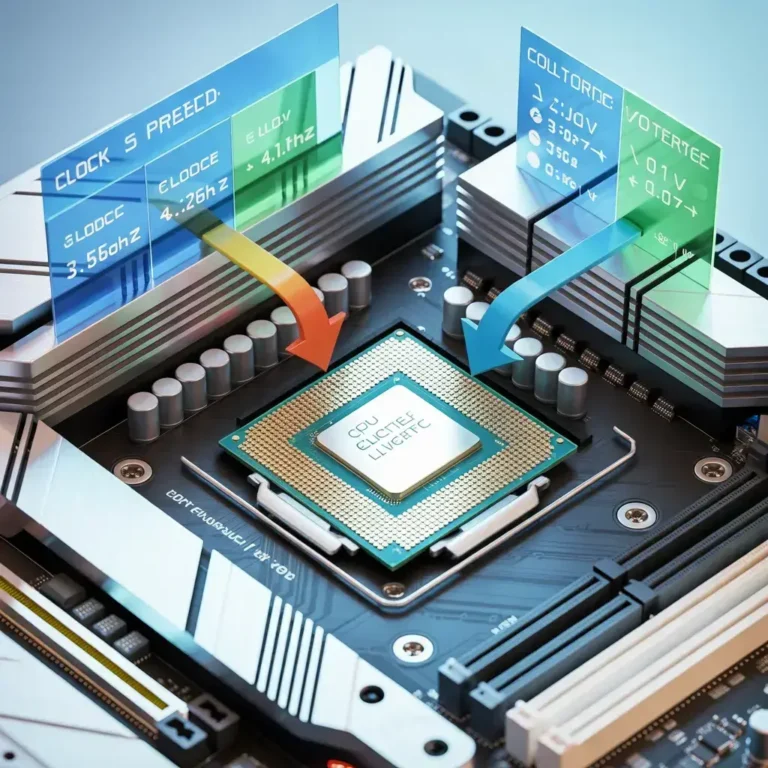
Absolutely. High CPU temperature can throttle performance, causing games to lag or stutter.
7. Can I check CPU temperature without software?
Yes, you can check CPU temperature using BIOS or UEFI on your PC. Restart your computer and press the key (usually F2, Delete, or Esc). c) to access BIOS. The hardware monitor section shows CPU temperature.